Understanding HTML Tags and Elements
HTML Stands for Hyper Text Markup Language.use for creating web pages. It is describe the structure of a web page. it is consist a series of a elements.These elements are tell the browser to how to display the content.
<!DOCTYPE html>
<html lang="en">
<head>
    <meta charset="UTF-8">
    <meta name="viewport" content="width=device-width, initial-scale=1.0">
    <title>Document</title>
</head>
<body>
    <p>This is my First Paragraph</p>
</body>
</html>
Example Explanation:
- The
<!DOCTYPE>declaration defines that this document is an HTML document. <html>tag is a root element of an HTML Page.<head>Tag contain meta information about HTML Page Such as title character encoding, viewport settings,stylesheets and scripts.defer execute the external script after parsing the HTML.- The
<body>tag is one of the most impoertant element in HTML because it contains main content of webpages that user sees and interact with it .Lists ,Tables ,Containers,Semantic elements are the common elements which i write inside the body tag.
HTML DOM Tree Structure
When we combine html elements such as <html> <head> <title> <body> <h1> and <p> they form a tree like structure called a DOM Tree.A Tree represent the relationship between HTML elements such as parent child and sibling relationship.
Consider this HTML Code:
<!DOCTYPE html>
<html lang="en">
<head>
    <title>My Website</title>
</head>
<body>
    <h1>Welcome to My Website</h1>
    <p>I am learning HTML.</p>
    <div>
        <h2>About Me</h2>
        <p>I am a web developer.</p>
    </div>
</body>
</html>
The Browser Parse this HTML and creates a DOM Tree in memory.
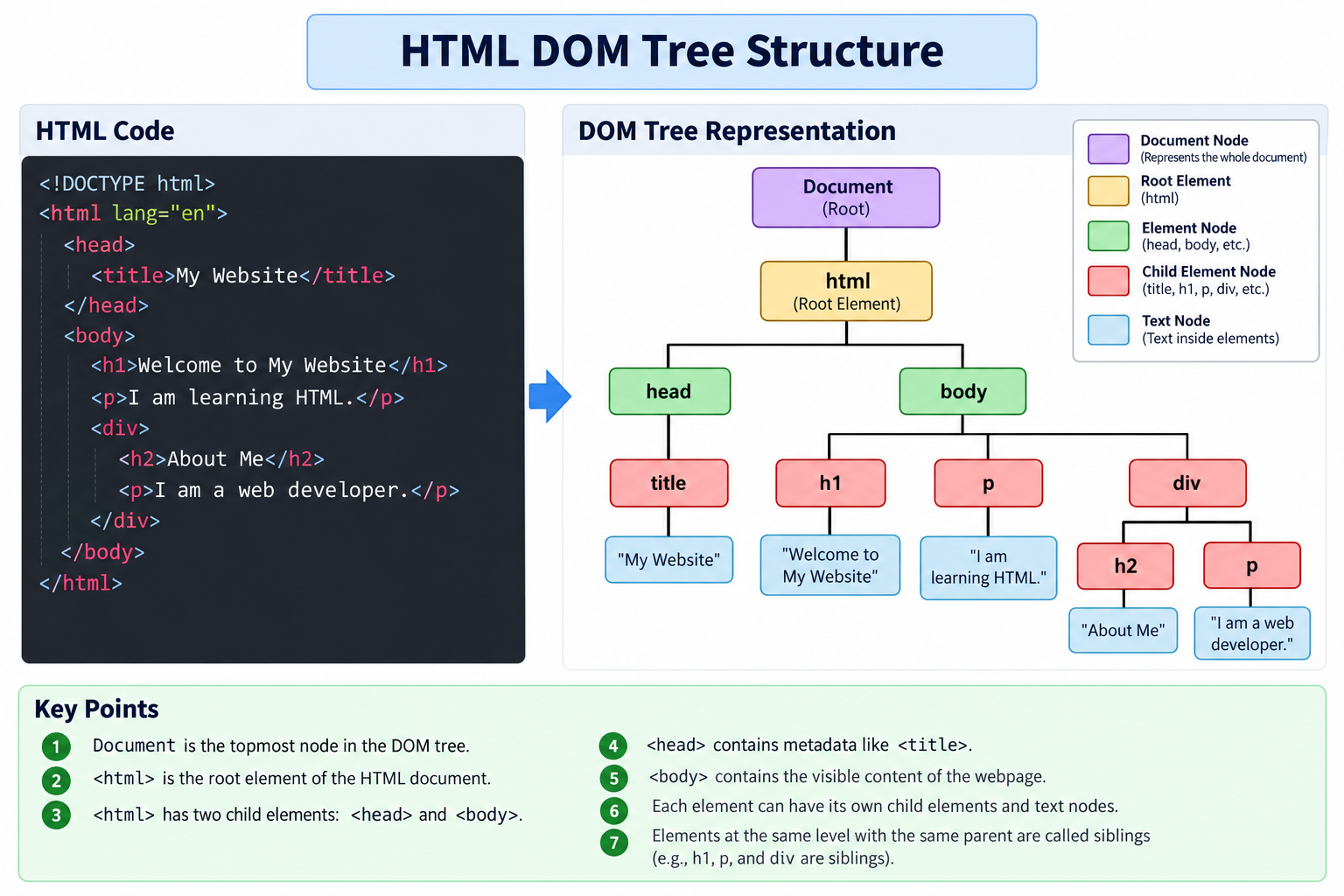
Noticed that the <html> element has two children <head> and <body>.The <body> element has three children <h1> <p> <div>.The Actual Dom also include text nodes, a document type node,a other possible type node.The above diagram focuses on HTML Elements to make a hierarchy easy to understand.
Understand Parent Child and Sibling Relationships
- A Parent is an element that directly contain another element.
- A Child element directly nested inside an another element.
- Siblings is an element that share same Parent.
Ancestor and Descendanr Relationship
These relationships go beyond aprent child relations.
<body> <div> <section> <p>Hello World</p> </section> </div> </body>
For the <p> element <section> is a parent element and <div> is a grandparent element.<body> <section> <div> are its ancestors.for the <body> element <div> <section> <p> are descendant.
The Browser Process HTML in Stages
- HTML source code
Browser receives HTML markup
- HTML parsing
Browser recognizes tags, attributes, and text
- DOM construction
Browser creates nodes and connects them
- Rendering
Browser combines DOM, CSS, and layout information to display the page.
What is an HTML Tag?
A HTML Tag is a piece of markup Written inside angle bracket (< >) that tells the browser how to interpret the different parts of HTML document.
HTML Tags are used to define elements such as headings, paragraphs, images,links,tabl;es and forms.
Basic Example of an HTML Tag
<h1> Hello World </h1><h1>is the Opening Tag.</h1>is the closing Tag.Hello Worldis the Content.
Types of HTML Tags
1. Paired Tags
These usually have an opening tag and closing tag and content between them.
<p> This is a paragraph. </p>
<h1> This is a heading. </h1>
Example:<p> <h1> <div> etc.
2. Void Tags
These elements do not have closng tags because they can not contain child content.
<br>
<hr>
<img src="photo.jpg" alt="A photo">
<input type="text">
Example:<br> <hr> <img> <input> etc.
What is a HTML Element
An HTML element is a complete component of HTML document , usually consisiting of an opening tag , content and closing tag.
Example of HTML Element
<p> Hello World! </p>
<p>tells the browser that a paragraph element begins.
Hello World!is the text inside the paragraph.</p>makes the end of paragraph element.
Together Opening Tag. Content and Closing Tag Form a paragraph Element.
Difference between HTML Tag and HTML Element.
| HTML tag | HTML element |
|---|---|
| A tag is markup written inside angle brackets. | An element is a complete component in the document. |
Example: <h1> |
Example: <h1>Welcome</h1> |
| Opening and closing tags are individual tags. | The element includes its tags and content. |
What is a Block Level Element
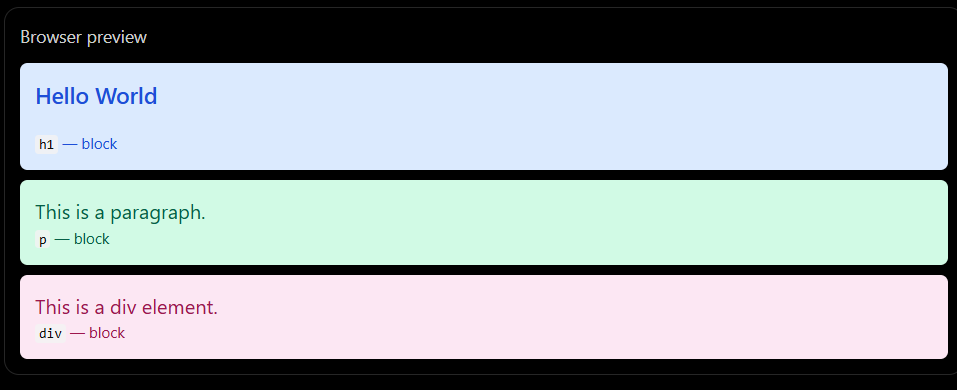
A Blocl Level Element normally starts on a new line and next block level element appears below it.
Example:
<h1> Hello World </h1>
<p> This is a paragraph. </p>
<div> This is a div element. </div>
The Browser Display these elements onn separate lines by default
Browser preview
Common Block Elements
<div>generic container<p>paragraph<h1>to<h6>headings<section>section of a document<article>self-contained content<header>introductory content<footer>footer content<ul>and<ol>lists
Important characteristics
- They normally begins on a new line.
- They generally occupy the available width by default.
- You can control their height, width, margin, padding by using CSS.
- They can Contain other elements, subject to HTML nesting rules.
What is inline element
These elements normally stays on the same line as surrounding text and takes up only the space it needs.
Example:
<p>
    I am learning
    <strong>HTML</strong>
    and <em>CSS</em>.
</p>
Here, <strong> and <em> are inline elements by default. They do not force the text on to new line.

Common inline elements
<span>generic inline container<a>hyperlink<strong>important text<em>emphasized text<br>stylistically bold text<i>alternate voice or mood, often displayed in italics<code>inline code<label>label for form control.
Important characteristics
- They normally do not start a new line.
- Their width usually depend on their content.
- The
widthandheightproperties generally do not affect ordinary non-replaced inline elements. - Vertical margins and padding do not behave like they do on block elements.
Diiference between Block elements and inline elements
| Feature | Block element | Inline element |
|---|---|---|
| New line | Normally starts on a new line | Normally stays on the current line |
| Default width | Usually available container width | Usually content width |
| Width and height | Generally configurable | Usually do not apply to ordinary inline elements |
| Examples | <div>, <p>, <h1> |
<span>, <a>, <strong> |
| Typical use | Structuring page sections | Styling or marking text within a line |
What is inline-block element
An element with display: inline-block combines the features of inline and block elements.
- Inline: It can sit alongside other elements on the same line.
- Block: You can set its width, height, margin, and padding.
<div style="display: inline-block; width: 150px; height: 80px; background: lightblue;">
    Box 1
</div>

<div style="display: inline-block; width: 150px; height: 80px; background: lightgreen;">
    Box 2
</div>

Both boxes appear on the same line when enough space is available, and each has a specified width and height.
Commonly used HTML Tags
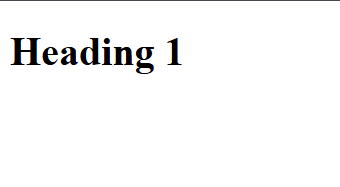
<h1>Defines a top level heading
<h1>Heading 1</h1>
Browser Preview:
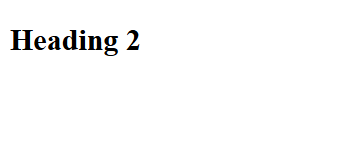
<h2>Defines a Second Level Heading
Code:
<h2>Heading 2</h2>
Browser Preview:
<h3>Defines a Third Level Heading
Code:
<h3>Heading 3</h3>
Browser Preview:
<h4>Defines a Fourth Level Heading
Code:
<h4>Heading 4</h4>
Browser Preview:
<h5>Defines a Fifth Level of Heading
Code:
<h5>Heading 5</h5>
Browser Preview:
- <h6> Defines a sixth Level of Heading
Code:
<h6>Heading 6</h6>
Browser Preview:
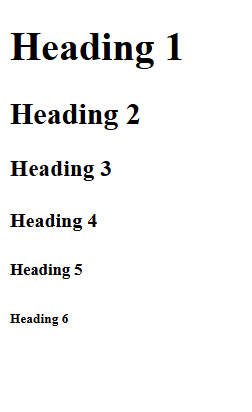
All Heading Tags
Code:
    <h1>Heading 1</h1>
    <h2>Heading 2</h2>
    <h3>Heading 3</h3>
    <h4>Heading 4</h4>
    <h5>Heading 5</h5>
    <h6>Heading 6</h6>
Browser Preview:
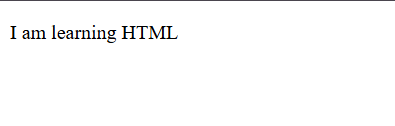
<p>Defines a Paragraph of a text
Code:
<p>I am Learning a HTML</p>
Browser Preview:
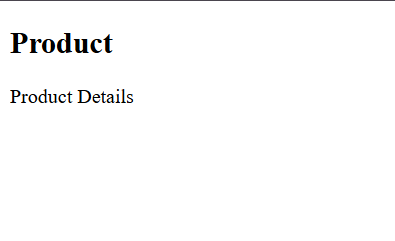
<div>Creates a generic block container for grouping elements
Code:
 <div>
        <h2>Product</h2>
        <p>Product Details</p>
    </div>
Browser Preview:
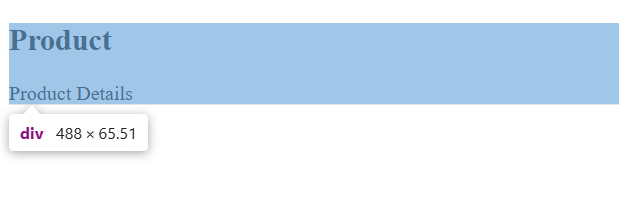
Browser Preview:
After Inspect to show how it is block level element
<span>Groups a small portion of a text in line
Code:
<p>Price:<span>500</span></p>
Browser Preview:
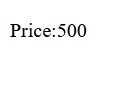
Browser Preview:
After Inspect to show span is inline element
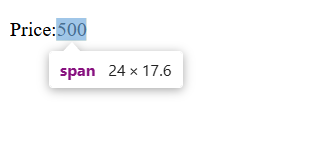
<a>Ceates a hyperlink to another page or website
Code:
<a href="https://google.com">Visit Google</a>
If you want to open in new tab then write target="_blank"
<a href="https://google.com" target="_blank">Visit Google</a>
Browser Preview:

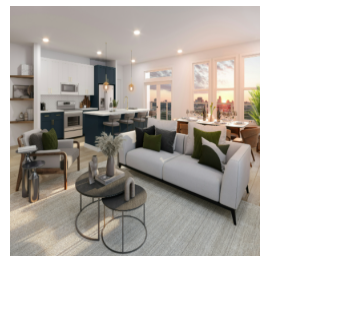
<img>Embeds an image in a web page
Code:
<img src="brian-zajac-4LngtXlsjJs-unsplash.jpg" alt="My Photo" height="200px" width="200px">
src is a attribute of an element and define the path of an image.
alt is alternative text which is show when the image is not loaded.
height and width is a dimension of the image.
Browser Preview:
<br>insert a line break
Code:
Hello<br>World
Browser Preview:
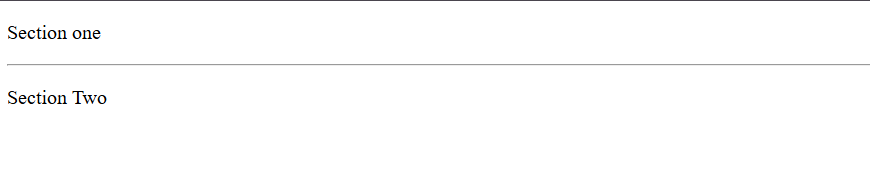
<hr>Represents a thematic break between sections
Code:
<p>Section one</p>
 <hr>
<p>Section Two</p>
Browser Preview:
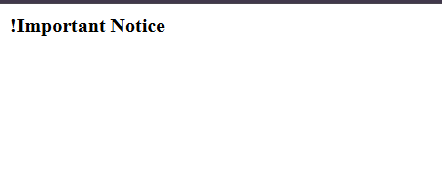
<strong>Marks text as a strongly important,usually displayed in bold
Code:
<strong>!Important Notice</strong>
Browser Preview:
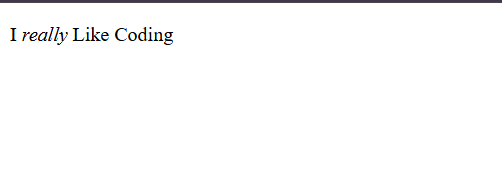
<em>Adds stress emphasis to text, usually displayed in italics
Code:
<p>I <em>really</em> Like Coding</p>
Browser Preview:
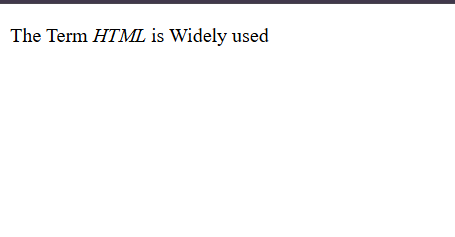
<i>Represents text in a alternate voice or style,usually displayed in italics
Code:
<p>The Term <i>HTML</i> is Widely used</p>
Browser Preview:
<b>Draw attention to text without indicating extra importance.
Code:
<p>Today's offer:<b>50% off</b></p>
Browser Preview:

<button>Creates a Clickable button
Code:
<button>Click me</button>
Browser Preview:

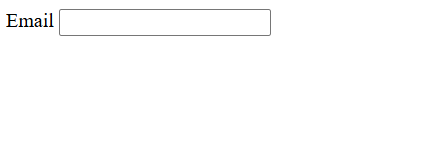
<input>Creates an input control for entering data<label>Provide a label for form control
Code:
<label for="email">Email</label>
<input type="email"/>
Browser Preview:
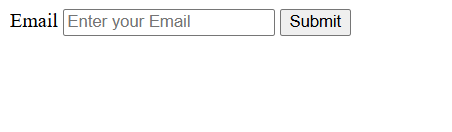
<form>Group controls used to Collect and submit user information
Code:
<form>
 <label for="email">Email</label>
 <input type="email" placeholder="Enter your Email"/>
 <button>Submit</button>
 </form>
Browser Preview:
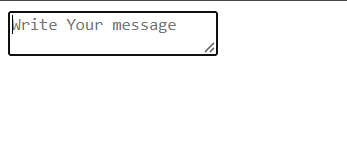
<textarea>creates a multiline text input. You can increase the height and width of textarea by settingrowsandcolsattributes.
Code:
<textarea placeholder="Write Your message"></textarea>
Browser Preview:
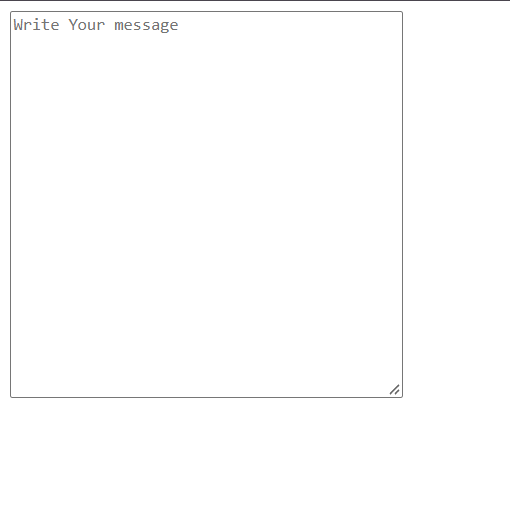
With rows and cols attributes
Code:
<textarea placeholder="Write Your message" rows="20" cols="40"></textarea>
Browser Preview:
<select>Creates a Dropdown menu
Code:
 <select>
    <option>India</option>
    <option>Japan</option>
 </select>
Browser Preview:
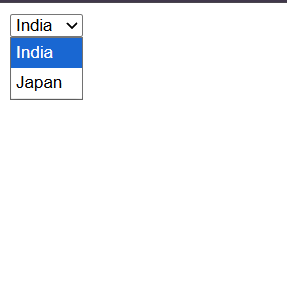
if you want to disable by defaul dropdown values write this code:
Code:
<select>
    <option value="" selected disabled hidden>Select a Country</option>
    <option>India</option>
    <option>Japan</option>
 </select>
Browser Preview:
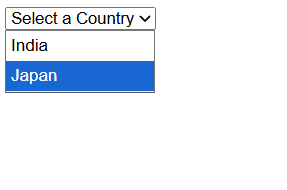
- <ul> Creates a unordered list usually with bullets.
Code:
<ul>
    <li>HTML</li>
    <li>CSS</li>
 </ul>
Browser Preview:
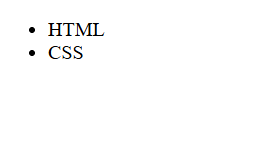
<ol>Creates an ordered list, usually numbered
Code:
<ol>
    <li>Learn HTML</li>
    <li>Learn CSS</li>
 </ol>
Browser Preview:
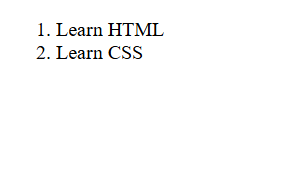
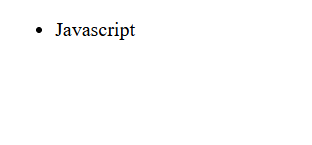
<li>Defines an item inside a list.
Code:
 <ul>
    <li>Javascript</li>
 </ul>
Browser Preview:
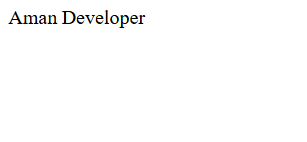
<table>Create a table for structure data. You can apply border using CSS.
Code:
 <table>
    <tr>
        <td>Aman</td>
        <td>Developer</td>
    </tr>
 </table>
Browser Preview:
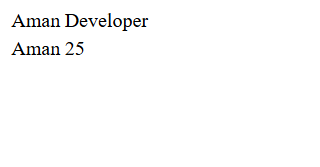
<tr>Defines a roe in table
Code:
<table>
    <tr>
        <td>Aman</td>
        <td>Developer</td>
    </tr>
     <tr>
        <td>Aman</td>
        <td>25</td>
    </tr>
 </table>
Browser Preview:
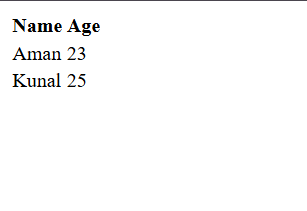
<th>Defines a header cell in a table.<td>Defines a regular data cell in table
Code:
<table>
    <tr>
        <th>Name</th>
        <th>Age</th>
    </tr>
    <tr>
        <td>Aman</td>
        <td>23</td>
    </tr>
     <tr>
        <td>Kunal</td>
        <td>25</td>
    </tr>
 </table>
Browser Preview:
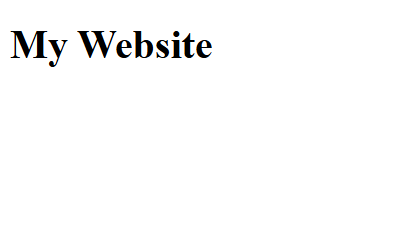
<header>Represents a introductory content for a page or section.
Code:
 <header>
    <h1>My Website</h1>
 </header>
Browser Preview:
<nav>groups important navigation links
Code:
 <nav>
    <a href="/">Home</a>
    <a href="/about">About</a>
 </nav>
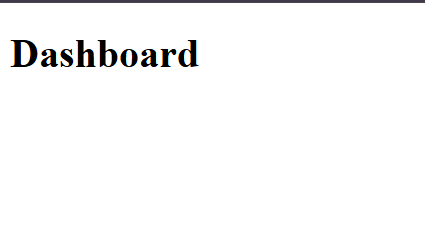
<main>contains the main content of webpage
Code:
 <main>
    <h1>Dashboard</h1>
 </main>
Browser Preview:
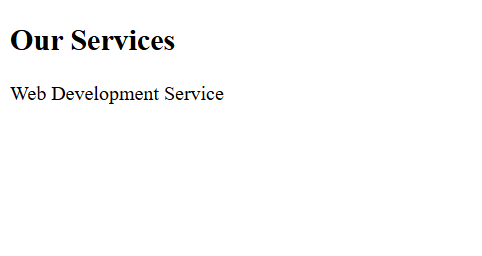
<section>Groups related content into a section
Code:
 <section>
    <h2>Our Services</h2>
    <p>Web Development Service</p>
 </section>
Browser Preview:
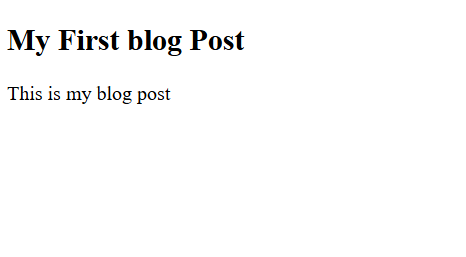
<article>Represents self contained content , such as blog post.
Code:
 <article>
    <h2>My First blog Post</h2>
    <p>This is my blog post</p>
 </article>
Browser Preview:
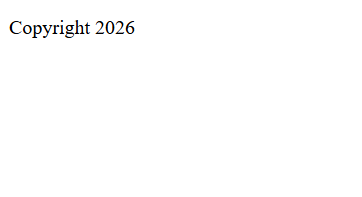
<footer>Represent a footer content of a page or section
Code:
 <footer>
    <p>Copyright 2026</p>
 </footer>
Browser Preview:
<link>link external resources, commonly a CSS stylesheet
Code:
<link rel="stylesheet" href="style.css">
<iframe>Embeds another webpage or supported external content.
Code:
<iframe src="https://example.com" title="Example website"></iframe>
<video>embeds video content.
Code:
<video controls>
    <source src="video.mp4" type="video/mp4">
</video>
<audio>Embeds Audio content
Code:
<audio controls src="audio.mp3"></audio>
<figure>Groups self-contained content such as an image or diagram.
Code:
<figure>
    <img src="laptop.jpg" alt="Laptop">
    <figcaption>A laptop</figcaption>
</figure>
<detail>Creates a disclosure widget that users can expand or collapse.
Code:
<details>
    <summary>Read more</summary>
    <p>Additional information.</p>
</details>
Comments
Join the discussionNo comments yet. Be the first to comment.